Setup in 4 steps
About ten minutes, no technical skills needed. Each step has an illustration.
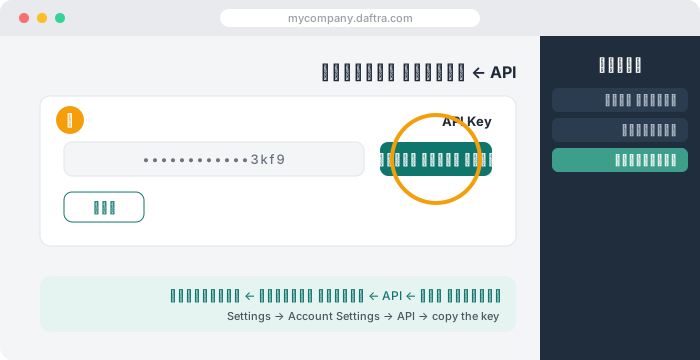
1 · Copy your Daftra key and account name
In Daftra: Settings → Account Settings → API — copy the API Key field. If no key is shown yet, generate one on the same page, then copy it. This key is the permission to read and write your books — share it with nobody; you will paste it only on our site.
You also need your account's subdomain: the first part of your Daftra address.
If your address is mycompany.daftra.com, the subdomain is mycompany.
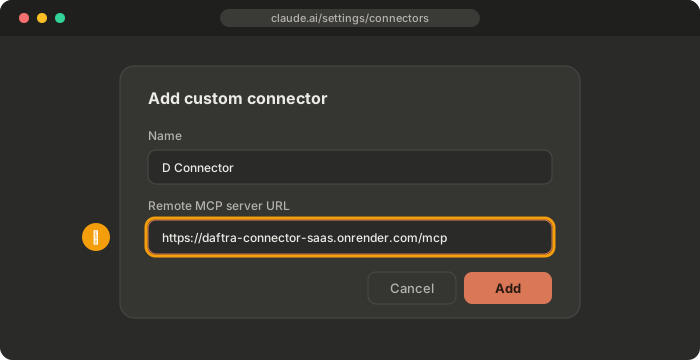
2 · Add the connector in your AI app
Copy this link:
https://daftra-connector-saas.onrender.com/mcp
- Claude: Settings → Connectors → Add custom connector → paste the link → Add.
- ChatGPT: turn on Developer mode in settings, then add the link as an app.
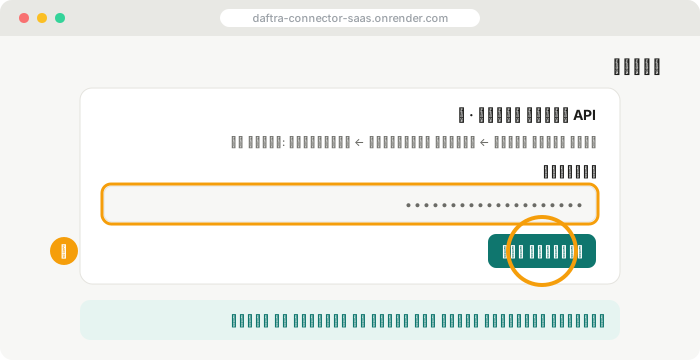
3 · Sign in and paste the key
Your AI app opens our page: continue with Google, enter the subdomain and paste the Daftra key from step 1, and click Allow. We verify the key with Daftra before saving it, and it is stored encrypted.
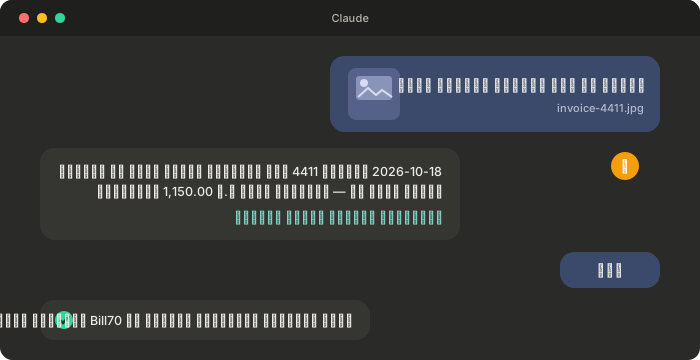
4 · Send your first invoice
In the chat, send the invoice photo and write, for example: "Enter this supplier bill in Daftra". It shows you the summary first; after your yes it saves a draft your accountant approves in Daftra.
More messages that just work
- "Create a sales invoice from this image".
- "Did we already record invoice 4411 from Al-Noor Co.?"
- "What is the total of this month's purchase invoices?"
- "Add this new client from the attached business card".
Menu names in AI apps can change. Your AI app may need a paid plan for custom connectors. Stuck? See the FAQ or write to sales@mea-is.com
Not affiliated with Daftra. · Part of the Awsel family · Privacy · Terms · sales@mea-is.com